
How to register your business on ChatGPT: a step-by-step guide to the Business Hub
Updated on November 12, 2026. The rules and definitions in this article were checked against OpenAI’s official page on the subject (link in Sources). The step-by-step and the screens come from the test we ran on our own account, on the same day. Where something is an account of our test rather than an OpenAI rule, the text says so.
Summary
- The feature is called Business Hub. It sits in ChatGPT’s side menu and is used to claim your business, keep its information up to date and see how many times ChatGPT has mentioned it.
- You don’t need an ads account or a paid plan. Claiming the business, advertising and publishing an agent are separate things, according to OpenAI.
- There are three stages: create or claim the business, prove the website is yours and verify your identity with Persona. After that, OpenAI reviews it and replies by email.
- Without Persona approval, almost nothing opens up: you can’t edit the information, see the insights or create an agent. In our test, “Agent builder” and “Products” stayed locked.
- The insights are ChatGPT’s and only ChatGPT’s. They show mentions and website clicks over the last 28 days, as aggregate numbers, without people’s questions.
- Registering does not guarantee that ChatGPT will recommend your business more often. OpenAI says so explicitly.
What Business Hub is
Business Hub is an area of ChatGPT built for businesses. In it you claim your business, enter details such as website, description, category, logo and delivery and return policies, and follow how people interact with it. Anyone authorized to represent the business can claim it after verifying their connection to it.
Two things help show how big this is. First: it is a new feature that is still being rolled out gradually, and availability depends on location and type of business. Second: it brings an official OpenAI dashboard with mentions and clicks for businesses, which changes the conversation about what can be measured about AI presence. We come back to this at the end.
Step by step: how to register your business
1. Open Business Hub and search for your business
Sign in to ChatGPT with the account that will manage the business, and open Business Hub from the side menu or directly through this link: chatgpt.com/business-hub. There is a search field (“Reach new customers and grow your business with ChatGPT”). Type your business’s name. If it already exists in the list, select the one that matches your business. If it doesn’t, an option appears to create a new listing with the text you typed.
Watch out for the name. In our test, we typed a search phrase and clicked the first option in the list, “Create” followed by the text typed. The result was a draft with the wrong name, “how to register my business”. Type your business’s exact name before you click. And if you get it wrong, OpenAI lets you delete drafts that haven’t been published yet (three-dot menu, “Delete draft”).
2. Choose the business model: physical or online
The next screen asks how customers usually interact with the business: at a physical location (store, restaurant, office) or through an online store (customers buy on your website or marketplace).
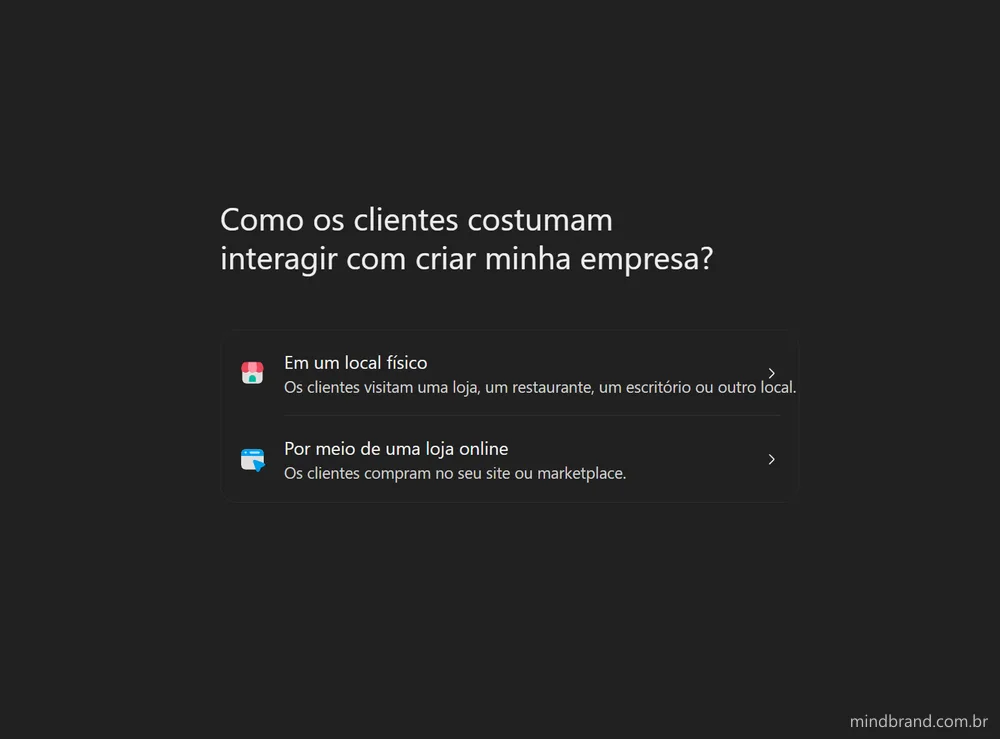
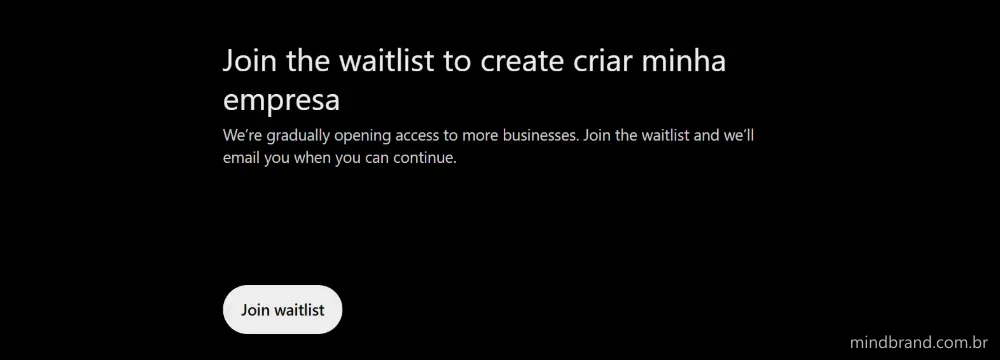
In our test, when we chose the physical location, a waitlist notice appeared (“Join the waitlist”): OpenAI is opening access to more businesses gradually and emails you when you can continue. The official page is consistent with this: for now, stores and restaurants can only claim a listing that already exists in the United States. So we went down the online path, as if we were an online store. OpenAI describes this path as the one for ecommerce and online service businesses.
3. Enter the website
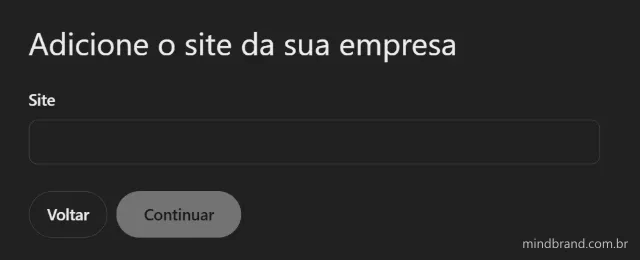
On the online path, the next screen asks for the business’s website. It is the basis of everything: OpenAI uses the website to verify that you are who you say you are and, in the case of mentions, to count when ChatGPT references your business.
4. Prove the website is yours
OpenAI offers more than one way to verify your connection to the business, such as phone, business email, website domain or Shopify store, depending on what is available in your case. On the screen we saw, verification was through the website domain: ChatGPT shows a TXT record (type, name or host, and value, each with a copy button) to be created in the domain’s DNS.
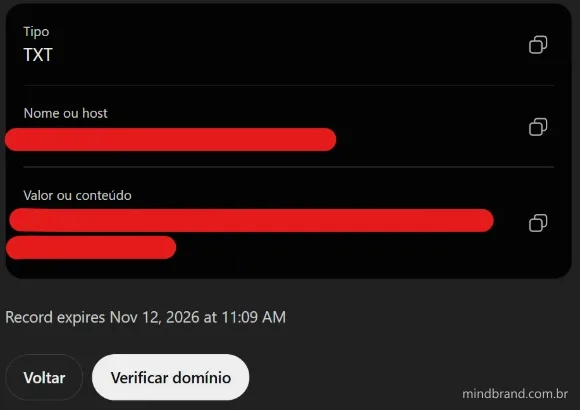
How to do it: copy the type, the name (or host) and the value exactly as they appear, create the record in your domain’s DNS panel and come back to click Verify domain. If someone else looks after your DNS, such as the agency or the IT team, ask them to create the record. DNS changes can take a while to appear, and the record shown has an expiry time, so don’t leave it for another day. The TXT value is unique to each account, which is why it is covered in the image.
5. Answer the questions about delivery and returns
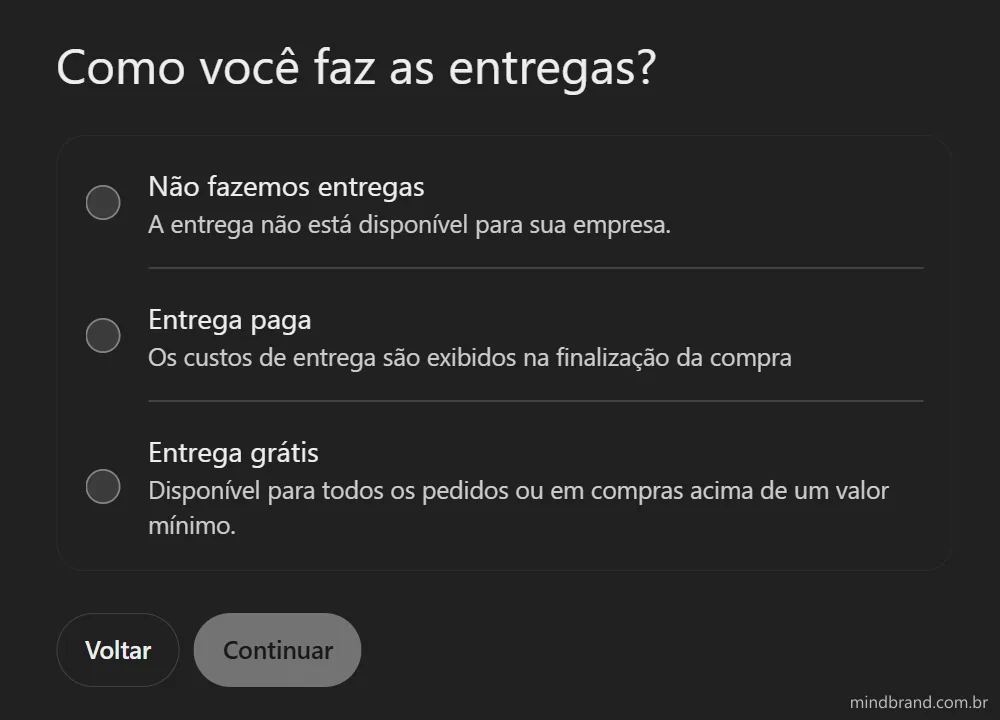
Next, the assistant asks business questions. The first is “How do you make deliveries?”, with three answers: we don’t make deliveries, paid delivery (the cost appears at checkout) or free delivery (for all orders or above a minimum amount). Then comes the return policy. A service business, such as an agency, has no delivery or returns; in that case the business card starts to show “Delivery unavailable” and “Returns not accepted”.
6. The draft is created
Once the questions are done, ChatGPT confirms that the business was created and that, for now, it is saved as a draft. There is a preview card with the name, category, website and the policies you entered. The screen also offers three paths: manage the business, get credit for ads on ChatGPT and upgrade to a ChatGPT Business plan. The last two are separate matters and are not needed for registration.
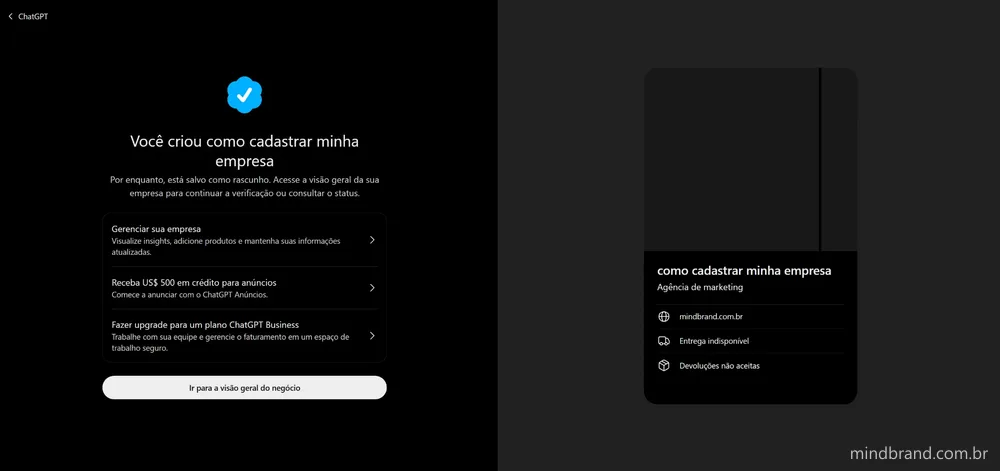
One detail that is easy to miss: the blue verified badge only appears after Persona approval. Claiming the business on its own does not give you the badge.
The Business Hub dashboard
When you open the overview, you find the business name with the “Draft” label, the “Edit business details” button, a notice to verify your identity with Persona and a “First steps” section: get the agent ready to talk to customers, upload the product catalog and learn about the ChatGPT Business plan. In the side menu, there are three items: Overview, Agent builder and Products.
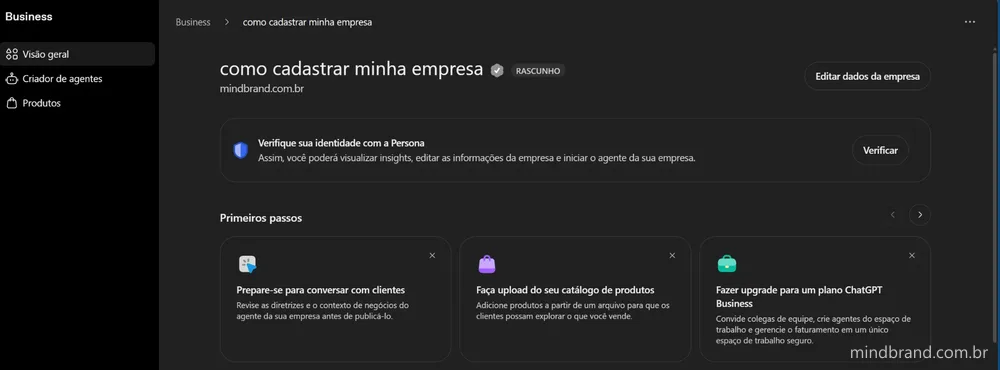
The last two items in the menu, Agent builder and Products, stayed locked in our test until approval of the documents. This matches the official page: Persona must be approved before you can publish changes to the information, connect a product catalog, see the insights or create an agent.
Identity verification with Persona
Persona is the company OpenAI uses to confirm who the person representing the business is. When you click “Verify”, the “Verify your business” window opens, asking you to confirm your authorization to manage the business before editing its profile.
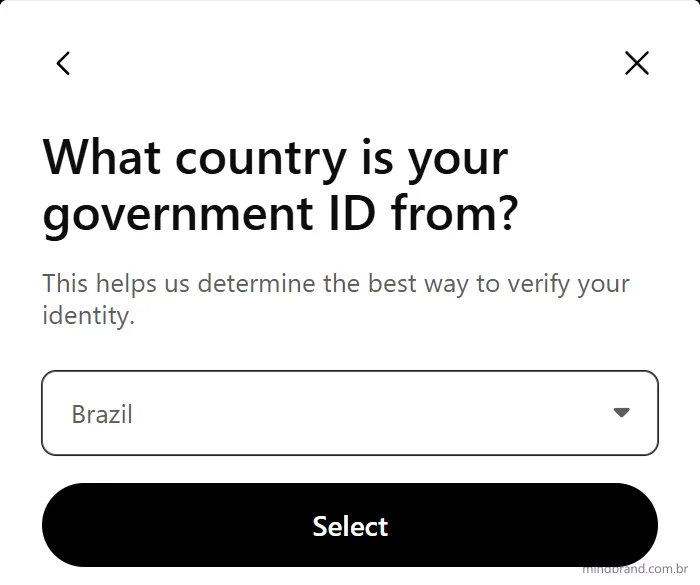
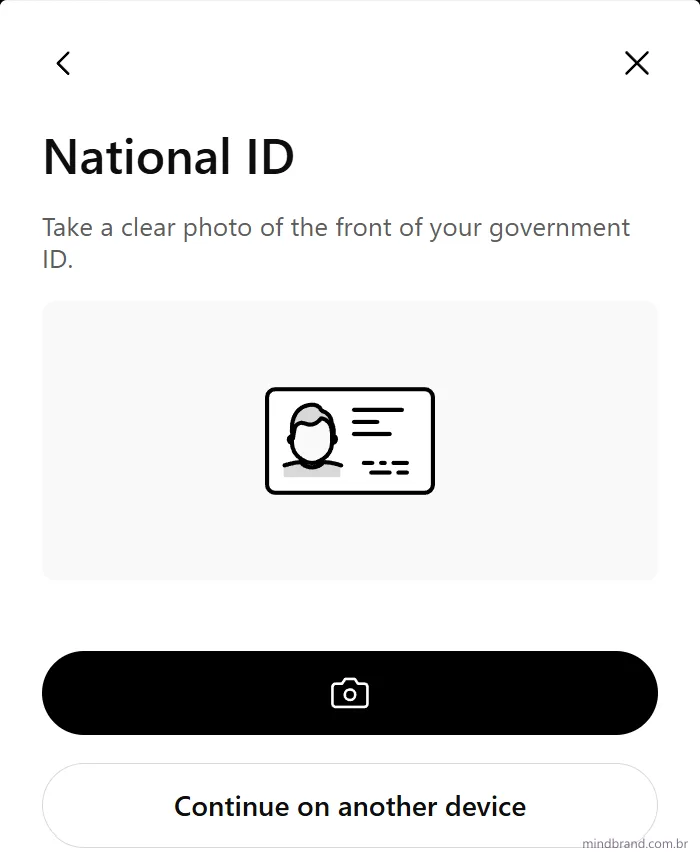
In our test the process went like this, in order: Persona opens a QR code to continue on your phone (you can also use your computer’s camera); then it asks which country your document is from, and we chose Brazil; next it asks the type of document, with options such as passport, driver’s license and national ID (our RG), and we chose the national ID; finally, a photo of the front and back of the document and a facial verification (biometrics). According to OpenAI, you may also be asked for the business registration and proof that you are authorized to represent it.
A word of caution from people who handle data: documents and biometrics are sensitive personal data. Only do this through the path ChatGPT itself opens (the Persona window inside Business Hub) and never through a link received by email or in a message from a third party.
What happens next? “Pending” status
Once verification is done, the Business list shows the business with the Pending label and the text “Continue verification”. According to OpenAI, they do the review and the result arrives by email, or a request for more information. The time varies, and the guidance is to wait for the review to finish before trying again. Sending your data to Persona does not mean verification was approved.

What the dashboard shows (and what it doesn’t)
This is the point we are asked about most. According to the official page, after the claim and Persona are approved, the insights tab shows activity over the last 28 days:
- Mentions. For an online business, a mention counts when ChatGPT references the business’s website. Merely citing the brand name does not count. For a local business, it counts when ChatGPT shows a result for that location.
- Website link clicks. How many times people clicked to go to your website.
- Discovery topics. Common themes in ChatGPT answers that mentioned or cited your business. They are categories, not individual questions, and not a direct measure of purchase intent.
And what it does not show: the business does not receive individual prompts or people’s conversations. It also does not receive conversations with the business’s own agent. OpenAI also warns that the numbers may be incomplete, and that a blank field does not mean zero activity: it may be that the volume has not yet reached the minimum to appear, that the data is still being collected or that the report is not available.
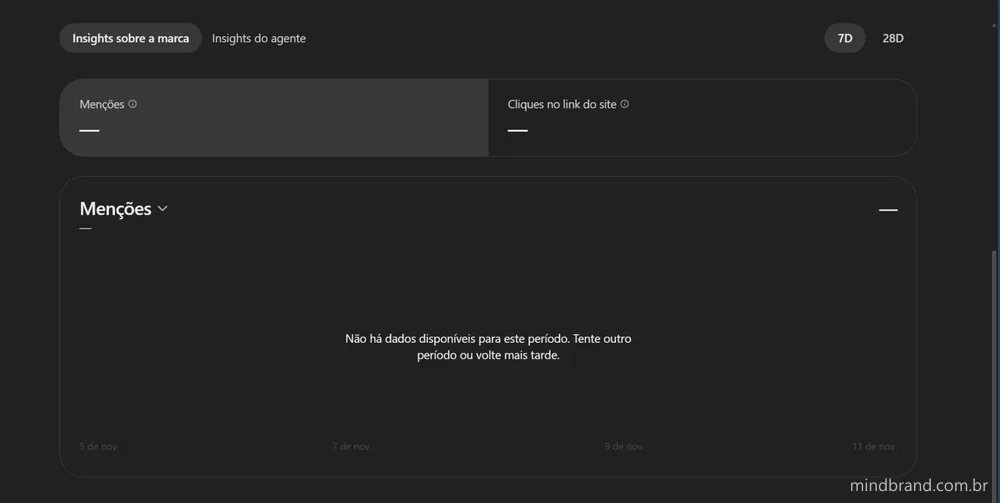
That is exactly what we saw on our account: Mentions and Clicks show a dash, and the chart says “No data available for this period. Try another period or come back later”. Our verification is still under review, so this was expected.
What this changes in measuring AI presence
Until now, what could be measured about ChatGPT was indirect signals: the visits that reach the website and show up in Analytics and Search Console. We wrote about this in How to measure your brand’s presence in AI. An official OpenAI dashboard, with mentions and clicks, is new and useful data, but with three limits that are worth making clear:
- It covers only ChatGPT. It says nothing about Gemini, Perplexity, Copilot or Google’s AI answers.
- It is aggregate data and may be incomplete, as OpenAI itself warns. It serves to follow a trend, not to count every mention.
- It does not replace Analytics and Search Console. It complements them: the dashboard tells you what ChatGPT did with your brand; Analytics tells you what happened on the website after the click.
We don’t have real numbers to show yet, because our verification is under review. When it is approved, we will update this article with what the dashboard actually shows.
Does registering your business make ChatGPT recommend it more?
Not necessarily, and OpenAI is direct about this. Claiming the business gives you control over the information you provide, but it does not guarantee more visibility or give you control over ChatGPT’s independent recommendations. Ads also do not influence organic answers. If you want to understand how ads work, which are a different thing, see the guide to ChatGPT Ads in Brazil.
In practice, registration works as a foundation: your business gets a verified profile, with the right website, description and policies, and a dashboard to follow. What makes a brand appear in answers remains what it always was: a clear website, useful and consistent content, and presence in sources that ChatGPT consults. That is the work of SEO and GEO.
Frequently asked questions
Do I need an ads account or a paid plan to claim my business?
No. According to OpenAI, you don’t need an ads account or a ChatGPT Enterprise agreement to claim an eligible business. Claiming, publishing an agent and advertising are three separate things.
Can I give access to colleagues or to my agency?
Yes. The admin who claimed the business can add colleagues in Business Hub and give an agency access to manage the business or the agent. Each person uses their own ChatGPT account. Do not forward the personal claim invitation to give access to someone else.
Can the business agent make sales or bookings?
No. In the current experience, the agent explains products and policies and takes the customer to your website, where the purchase or booking happens. For now, agents are for ecommerce and online service businesses in the United States that have a website, and the business must comply with OpenAI’s agent policy.
Do I need Shopify?
No. Eligible businesses can create an agent with or without Shopify. Those who use Shopify can connect the catalog to share products, prices and availability, but still need to review and publish the agent.
Can I manage several brands together?
Not in a centralized way yet. Each brand is managed separately, and claiming the main brand does not claim its locations.
What should I do if verification is pending or fails?
Wait for the email from OpenAI. If Persona fails or expires, follow the instructions in the email and, if “Try again” appears, submit the corrected information, checking that the business name, address and registration numbers match the official documents. If you can’t try again, contact OpenAI Support.
Why don’t changes to the business details appear right away?
OpenAI reviews and publishes changes, and they can take time to appear in the listing or in answers. ChatGPT may also use other sources when answering about your business.
Want to know how your company appears in AIs?
Registering your business is the beginning. What decides whether ChatGPT and the other AIs will cite your brand is what is on your website and outside it. In the Business Diagnostic, we look at your website, your Google presence and your presence in AIs and tell you what to fix first.